Island does not publish list pricing for on-premises or air-gapped deployments. Cost depends on seat count, classification level (e.g., IL4+), and whether self-hosted management console infrastructure and internal update pipelines are included in the license or billed separately. Request a scoped quote from Island's sales or solutions engineering team, and confirm what infrastructure and support costs fall outside the license fee before budgeting.
Introduction
Island enterprise browser on-premises deployment in an air-gapped environment means running the management console, license server, update mirror, and log aggregation entirely inside the isolated segment, with no dependency on the vendor's cloud infrastructure. Air-gapped enterprise browser deployments fail at the periphery, not the browser itself. The package repository, management console, update pipeline, licensing mechanism, and log forwarding all must be fully operational before a single endpoint is touched. There is no internet fallback to recover a failed dependency mid-deployment.
This guide is written for infrastructure and security engineers who already understand network segmentation, Kubernetes or VM-based hosting, and enterprise endpoint management. It is not a general IT reference.
When air-gapped browser deployments fail, they fail in predictable ways:
- Endpoints register with the vendor's cloud console instead of the local one
- Offline licenses time out silently with no visible error
- Web filtering policies reference unreachable cloud lookup endpoints and fail open — passing all traffic without evaluation
This guide covers the complete deployment sequence: infrastructure staging, local management console deployment, endpoint installation, offline policy enforcement, update management, and the most common failure modes to test before go-live.
Key Takeaways
- All dependencies, installers, and policy templates must be pre-staged in the air-gapped environment before deployment begins
- A locally self-hosted management console is a hard requirement — a cloud SaaS console will not function without internet connectivity
- Browser updates must flow through an internal package mirror or a manually approved transfer process — automatic update checks will silently fail
- Offline licensing, local SIEM log forwarding, and web filtering via local category databases must be configured before go-live
- Post-deployment validation requires a policy enforcement test, an update simulation, and a confirmed log ingestion event
- Teams choose this approach because it keeps browsing activity, policy enforcement, and telemetry fully inside a controlled boundary, which is the core reason organizations evaluate the island browser for regulated or classified environments
Prerequisites and Infrastructure Readiness
Air-gapped deployments fail most often because organizations discover missing dependencies after crossing the physical boundary. Confirm these three readiness categories before any deployment activity begins.
Network and Boundary Architecture
- Identify the exact air-gap boundary and whether a data diode (a device that allows data to travel only in one direction, per NIST) or a unidirectional gateway is in place for approved transfers
- Confirm whether any approved one-way data transfer channel exists for package ingestion — this determines your update and patch import process
- Document the boundary type; it affects every subsequent transfer decision
Hosting Infrastructure
Confirm where the management console will run before selecting a deployment method:
| Platform | Notes |
|---|---|
| Kubernetes cluster | Requires control-plane and worker nodes; HA topology needs at least 3 control-plane hosts |
| VM-based hypervisor | Simpler operationally; less resilient without manual HA configuration |
| Bare metal | Highest isolation; most operationally demanding |
For Kubernetes deployments, kubeadm requires a minimum of 2 GB RAM and 2 CPUs per machine — treat these as absolute floors, not production sizing. Request console-specific sizing from your browser vendor before provisioning.
Identity and Directory Services
- Confirm that your local Active Directory, LDAP server, or on-premises identity provider is reachable from within the air-gapped segment
- If it is not reachable, stop. Proceeding without a working identity provider means the management console cannot authenticate administrators or bind endpoint policies to user accounts
Hard Non-Negotiables
Do not proceed if any of the following are unresolved:
- Local identity provider unreachable from within the air gap
- Offline license not yet requested and issued by the vendor
- No internal log aggregation target (SIEM or syslog server) configured
Tools and Components Required
Pre-stage these components before crossing the air-gap boundary:
- Enterprise browser installer packages — all supported OS variants
- Management console server binaries or container images
- Offline license token or activation file (vendor-issued)
- Extension packages as CRX files and baseline policy templates
- Dependent runtime libraries (e.g., .NET, VC++ redistributables on Windows)
- Offline OS package repository or Artifactory instance
- GPG keys or SHA-256 hash manifests for package integrity verification
- USB or secure transfer workstation for physical media ingestion
- Internal DNS entry pre-configured for the management console FQDN
- Dedicated service account with local admin rights on target endpoints
How to Deploy an Enterprise Browser in an Air-Gapped Environment
The deployment sequence is strictly ordered. Environment staging must be complete before any endpoint installation begins.
Staging the Internal Package Repository
All browser binaries and dependencies must be mirrored to an internal repository before installation starts.
- Download packages on a staging workstation with temporary internet access — collect all browser installer packages, console binaries, and runtime dependencies
- Verify integrity using SHA-256 checksums or GPG signatures provided by the vendor before transfer
- Transfer via approved media — USB with content inspection or a one-way data diode gateway, per your boundary architecture
- Validate inside the air gap — re-verify checksums after transfer; do not assume media transfer preserved integrity
- Publish to internal repository — the repository must serve packages over HTTPS using a trusted internal CA certificate; browsers will reject HTTP sources or untrusted certificate authorities at install time
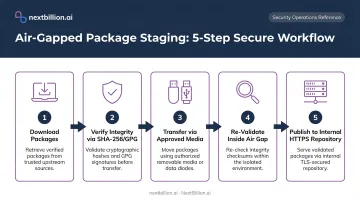
The NCSC's pattern for safely importing data covers scanning, transformation, validation, and unidirectional transfer as the authoritative process model for high-integrity environments — structure your transfer procedure around it.
Deploying the Local Management Console
Whether deploying via Kubernetes (Helm charts) or a VM-based installer, the console must be accessible to all endpoints within the air-gapped segment via a static internal DNS entry. This is how the enterprise browser works in practice: the browser itself enforces policy locally on the endpoint, while the console acts as the single source of truth for identity binding, policy distribution, and log collection, all without reaching outside the boundary. Because every trust and enforcement decision is anchored to infrastructure you control, rather than a vendor cloud, this architecture is what makes the deployment defensible as safe for air-gapped and other high-security use cases.
Initial console configuration checklist:
- Bind to the internal identity provider (AD/LDAP or on-premises SAML IdP)
- Upload the offline license token
- Confirm the console's internal FQDN resolves correctly from endpoint machines
- Verify TLS certificate chain — the internal CA must be trusted on all endpoints
Before moving to endpoint installation, confirm DNS resolution and TLS validation from at least one representative endpoint. Both must pass cleanly — partial resolution is not sufficient.
Installing the Browser on Endpoints
Use enterprise deployment tooling: SCCM, Ansible, or GPO-based MSI deployment. The critical configuration step is pointing the installer to the internal management console URL. Using the vendor's cloud URL here is the setup step most teams get wrong.
For Chromium-based enterprise browsers, this is typically controlled via:
- A registry key at installation time (Windows)
- A configuration flag passed to the installer
- A managed preferences JSON file deployed before browser launch
Confirm the exact parameter with your vendor's deployment documentation. An installer that silently enrolls with the cloud console instead of the local one is the single most common cause of endpoints appearing as "unregistered" in the local console post-deployment.
Initial Policy Configuration and Baseline Enforcement
With endpoints enrolled, the next step is locking down external data paths. Import a baseline policy configuration into the local management console and configure the following before go-live:
Disable all cloud-bound telemetry and lookup endpoints:
MetricsReportingEnabled→ disabled (stops crash and usage data to Google)SafeBrowsingProtectionLevel→ set to0(no cloud lookups) or configure a local equivalentSafeBrowsingExtendedReportingEnabled→ disabledUrlKeyedAnonymizedDataCollectionEnabled→ disabledComponentUpdatesEnabled→ controlled via policy to prevent hidden external dependency paths
Configure local equivalents:
- Internal update server address (replace vendor cloud endpoint)
- Local category-based web filtering database
- DLP controls using locally hosted classification sources
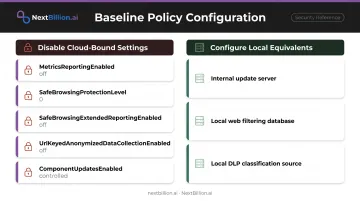
Any policy entry that still references an external URL will either generate noise or — worse — cause the policy engine to fail open when the endpoint is unreachable.
Configuring Offline Management Console and Policy Enforcement
In an air-gapped deployment, every data flow that syncs automatically in a cloud setup must be replaced with a local equivalent or handled manually. Failing to audit all outbound sync URLs before go-live is the single most common cause of console instability post-deployment.
Offline License Validation
Most enterprise browser vendors provide an offline activation model (typically a token-based or certificate-based license file) for air-gapped customers. The general process:
- Request an offline license file from the vendor before deployment begins
- Import it into the local management console during initial configuration
- Confirm the re-validation cadence with the vendor (often annual)
- Set a calendar reminder at least 60 days before expiry
If an offline license expires without renewal, behavior varies by vendor but typically results in read-only mode or degraded policy enforcement. Confirm the exact expiry behavior with your vendor and document it as a known operational risk.
Local Web Filtering Without Cloud Lookups
Configure the browser's web filtering component to use a locally maintained category database rather than live cloud URL reputation queries. This database should be:
- Vendor-supplied as an offline feed
- Updated via your approved transfer schedule (not automatically)
- Documented in the organization's risk register as a known residual risk
Local databases will always lag behind live threat intelligence. Define a maximum acceptable lag window aligned to your transfer cadence and document it before go-live.
With filtering controls established, the next configuration priority is ensuring all browser activity generates auditable records inside the segment.
Log Forwarding to a Local SIEM
Instead of forwarding to a cloud SIEM, configure the browser to forward logs via syslog or NDJSON to a local SIEM or log aggregator within the segment.
Typical log fields emitted by enterprise browsers (aligned to NIST SP 800-53 audit controls):
- User ID
- Device ID and source IP
- URL and resource accessed
- Policy verdict (allow/block/warn)
- Timestamp
Confirm these fields map to your local SIEM's parsing schema before go-live. A log forwarding configuration that silently drops events because of a schema mismatch provides no security value.
Role-Based Access Control
Assign Full Admin and any required System Admin roles to specific named accounts before cloud-based SSO is disabled or becomes unavailable. In an air-gapped environment, losing admin access to the local console has no self-service recovery path — remediation requires vendor support or direct database intervention.
Maintaining Updates and Security Without Internet Access
Browser updates are a specific risk in air-gapped environments. Google began shipping weekly Stable security updates starting with Chrome 116, and a single March 2026 Stable update included 21 security fixes. An un-updated Chromium-based browser in a sensitive network is an exploitable attack surface. Disabling updates entirely only makes that worse; the right answer is managing them manually through an internal server.
Configuring an Internal Update Server
Configure the browser to check an internally hosted update server rather than the vendor's cloud endpoint. For Chromium-based products, the Omaha protocol defines the interaction between a software updater and update infrastructure. That protocol is what you redirect to point at an internal relay instead of Google's servers. Do not disable update checks entirely; instead, redirect them to an internal server that you control and populate on your approved schedule.
The Approved Package Transfer Process
For each security patch cycle:
- Download new browser packages on the internet-connected staging workstation
- Verify SHA-256 hashes before transfer
- Transfer via approved media (USB with content inspection, or data diode gateway)
- Re-validate inside the air gap
- Promote to internal repository
- Deploy via enterprise tooling (SCCM/Ansible/GPO)
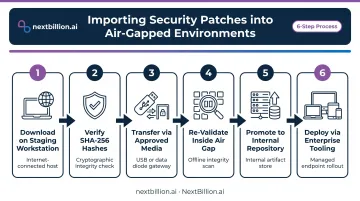
Recommended cadence: Monthly at minimum, aligned to patch Tuesday for critical CVEs. Given weekly Chrome security updates, a longer cycle means accumulating real patch debt in a sensitive environment.
The same transfer process applies to browser extensions — they need their own managed path into the air gap.
Extension Management Without the Chrome Web Store
In an air-gapped environment, extensions can't be pulled from the Chrome Web Store or any vendor CDN. Manage them this way instead:
- Package all required extensions as CRX files
- Host them in the internal package repository
- Force-install via the local management console's extension policy
- Pin extension ID and version to prevent silent update failures when the extension source becomes unreachable
Management Console Updates
Treat console updates as planned maintenance events:
- Schedule a maintenance window
- Take a full database backup before upgrading
- Verify the new console version remains compatible with the browser version currently deployed to endpoints
- Do not update the console and browser simultaneously — stage one, validate, then stage the other
Common Air-Gapped Deployment Problems and Fixes
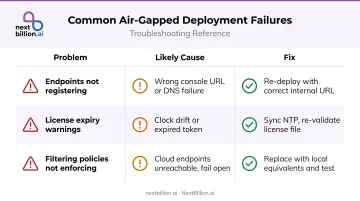
Management Console Fails to Register Endpoints
Problem: Endpoints appear as unregistered or "pending" in the local console; policies are not applied.
Likely cause: The browser installer was configured with the vendor's cloud console URL, or the internal DNS entry for the console is not resolving from the endpoint network segment.
Fix:
- Verify internal DNS resolution from an endpoint using
nslookupordig - Re-deploy the browser with the correct internal console URL in the configuration
- Confirm the internal CA certificate for the console's TLS endpoint is trusted on endpoints — browsers will refuse connections to consoles presenting untrusted certificates
Browser Displays License Expiry or "Unlicensed" Warnings
Problem: Users see license warnings, or the console reports licensing errors despite the offline license having been imported.
Likely cause: The offline license has expired, the token was imported to the wrong console instance, or the console server's system clock has drifted — causing the time-based license validation check to fail.
Fix:
- Confirm the console server is synchronized with an internal NTP server — clock drift silently breaks time-based license validation
- Verify the license file against the vendor's provided checksum
- Contact the vendor's offline licensing team if renewal is required
Web Filtering or DLP Policies Not Enforcing
Problem: Expected policy blocks are not triggering; all traffic passes without policy evaluation.
Likely cause: Policy configuration still references cloud-based URL reputation or DLP classification endpoints that are unreachable in the air-gapped segment. When the classification backend is unreachable, the policy engine may fail open — passing all traffic rather than blocking it.
Fix:
- Audit every policy configuration entry for external service URLs
- Replace cloud endpoints with internal equivalents or locally cached data sources
- Test with a known-blocked URL category before declaring policies active
Per NIST's fail-to-known-state guidance, every policy engine needs a documented, tested failure state. "Allow all when backend unreachable" is not an acceptable default in a sensitive environment.
Pro Tips for Air-Gapped Enterprise Browser Deployments
Pre-validate in a simulated air gap first. Block all outbound traffic at the firewall in a staging environment before committing to the production air-gapped segment. Every external dependency missed during planning will surface here — and it's far easier to remediate before crossing the physical boundary.
Maintain a transfer log for every package ingestion. Document hash values, transfer date, approving engineer, and version number for every artifact brought into the air-gapped environment. This log satisfies CMMC Level 2/3 and FedRAMP continuous monitoring evidence requirements — and serves as your recovery baseline when a console upgrade introduces regressions.
Establish a quarterly re-validation schedule. Air-gapped deployments degrade quietly. Browser versions fall behind, threat intel databases go stale, offline licenses approach expiry, and SIEM log forwarding health goes unchecked. A quarterly review covering all four — with a named approver signing off each time — keeps drift from becoming a compliance gap.
Frequently Asked Questions
How does Island Enterprise Browser work for on-premises, air-gapped deployment?
Island Enterprise Browser supports air-gapped, on-premises deployment by allowing the management console to be self-hosted within the private network. Policies are enforced locally without requiring cloud connectivity, and log forwarding redirects to a local SIEM rather than a cloud endpoint. Confirm specific configuration details with Island's solutions engineering team.
Why do companies use Island Enterprise Browser for on-premises or air-gapped environments?
The primary drivers are regulatory mandates in defense, government, and critical infrastructure — sectors where compliance frameworks like CMMC, FedRAMP, and IL4+ restrict or prohibit internet-connected endpoint management. Island's FedRAMP "Agency Auth In Process" status at the High classification level reflects this positioning. Organizations moving in this direction typically also run other systems, such as fleet routing or mapping infrastructure, on isolated networks, so evaluating any vendor's on-premises deployment model against the same air-gap requirements keeps the overall architecture consistent.
Is Island Enterprise Browser secure for on-premises, air-gapped deployment?
Security in air-gapped deployments depends on proper configuration — not on air-gapping alone. Three requirements are non-negotiable:
- Disable all cloud telemetry endpoints
- Maintain an internal update pipeline with a defined patch cadence
- Ensure policy controls reference reachable internal services, not cloud endpoints that would fail open
What are the hardware and infrastructure requirements for air-gapped enterprise browser deployment?
You need a Kubernetes cluster or VM hypervisor for the management console, with internal DNS and a private CA for TLS. Kubernetes minimums are 2 GB RAM and 2 CPUs per node for kubeadm — production deployments require substantially more. Request vendor-specific console sizing before provisioning infrastructure.
How do you handle browser updates in an air-gapped environment?
The transfer process follows five steps:
- Download updates on an internet-connected staging workstation
- Verify integrity via SHA-256 hash
- Transfer into the air-gapped segment via approved media
- Re-validate after transfer
- Publish to an internal update server the browser polls in place of the vendor's cloud endpoint
A monthly cadence aligned to Patch Tuesday is the minimum defensible cycle.
Can enterprise browser policy management work without cloud connectivity?
Yes — policy management works fully offline when the management console is self-hosted. The tradeoff: threat intelligence feeds, extension updates, and license renewals no longer sync automatically and must be managed through documented manual processes with defined cadences and named approvers.
How does the island browser work?
Island Enterprise Browser is a Chromium-based browser with policy enforcement built into the browser layer instead of bolted on via extensions or proxies. Administrators define controls — data loss prevention, session recording, access restrictions — through a management console that pushes policy to each browser instance. In air-gapped deployments, that console runs on-premises, and policy, logging, and updates route through internal infrastructure instead of Island's cloud.