There is no single best FSM software — the right choice depends on fleet size, job complexity, and integration needs. Dispatchers should look for platforms combining live dispatcher workspaces, technician routing, mobile job updates, and reporting on SLA and utilization metrics. Evaluate based on how well the tool handles mid-shift disruptions like cancellations or urgent reassignments, since that is where dispatcher time is usually lost.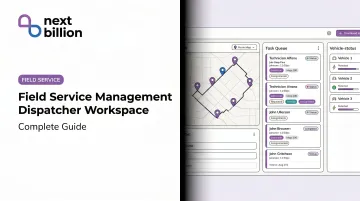
Introduction
A dispatcher workspace is a real-time operations dashboard that consolidates work orders, technician locations, availability, and job KPIs into one interface, giving dispatchers the visibility to track technicians, manage work orders, and make assignment decisions that keep customer service on schedule. It's the screen a dispatcher stares at all day — tracking technician locations, managing work orders, and making assignment decisions that affect whether customers get served on time.
Most organizations have access to one. Fewer use it well.
Salesforce research across 5,500+ service professionals found that 76% of mobile workers now use intelligent scheduling — yet scheduling conflicts and travel time remain top productivity barriers. Having the right software is only part of the equation — how dispatchers actually work inside it determines whether that investment pays off.
This guide breaks down what a dispatcher workspace is, how to set it up for real operational control, and what it takes to move from passively watching status updates to making decisions that drive better outcomes.
Key Takeaways
- A dispatcher workspace is a real-time operations dashboard consolidating work orders, technician locations, availability, and job KPIs in one interface
- It requires proper setup — dispatch groups, skill profiles, and territory boundaries — before it runs reliably
- Core workflow: qualify → assign → route → monitor → close
- Passive use (status-checking only) is the most common misuse — effective dispatchers actively manage reassignments and SLA risks
- Embedded route optimization APIs eliminate manual routing, letting dispatchers handle more jobs with fewer errors
What Is a Dispatcher Workspace in Field Service Management?
A dispatcher workspace is a unified, real-time dashboard that brings together work orders, technician locations, availability status, and job KPIs into a single operational interface. It's not a scheduling calendar. It's not a CRM. Those tools handle planning and relationships — the dispatcher workspace handles what's happening right now and who needs to respond.
The Three Core Components
Every dispatcher workspace contains the same fundamental layers:
- Task management panel — unassigned, in-progress, and completed work orders with status, priority, and SLA timers
- Interactive map view — live technician positions, job site locations, and travel direction overlaid on a territory map
- Agent status board — technician availability, skill tags, current workload, and shift windows
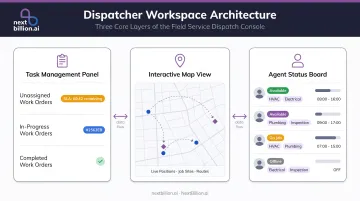
Microsoft Dynamics 365 Field Service describes its schedule board as helping dispatchers assign work orders to the best resources based on location, availability, skill set, and priority — with all four factors visible simultaneously, not in separate screens.
Who Uses It and How
Dispatchers are the primary users, making assignment and reassignment decisions throughout the shift. Managers use it for oversight and performance review. In some FSM platforms, field team leads can access a read-only view to coordinate on-site.
The workspace sits at the center of the FSM ecosystem: connecting inbound work orders (from customer portals, IoT alerts, or manual entry), technician mobile apps, inventory records, and reporting dashboards — all feeding into one place where decisions get made.
How to Use the Dispatcher Workspace: Step-by-Step
Effective dispatcher workspace use follows a defined sequence. Skipping configuration steps or bypassing qualification checks produces misassignments, SLA breaches, and wasted technician time.
Configuring the Workspace Before You Start
Before dispatching a single job, the underlying data needs to be correct:
- Define dispatch groups by territory or service line
- Build assignment groups with accurate skill tags and certifications for each technician
- Establish territory boundaries so auto-assignment logic has valid parameters
- Set working hours and shift windows per technician
The most common setup error: incomplete or outdated technician skill profiles. When skills aren't accurately tagged, auto-assignment either fails silently or sends the wrong technician — resulting in a failed first visit and a repeat dispatch.
Route optimization tools like NextBillion.ai's Route Optimization API use a 'skills' parameter that matches jobs to technicians based on tagged capabilities, certifications, and service qualifications. That matching only works if the underlying profiles are accurate.
Receiving and Qualifying Work Orders
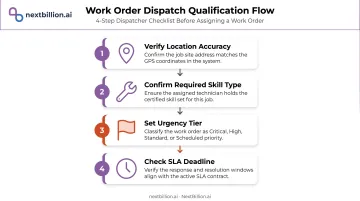
Incoming service requests populate the workspace from customer portals, IoT alerts, or manual entry. The dispatcher's qualification role before assignment:
- Verify location accuracy: incomplete addresses cause routing failures
- Confirm required skill type: matches the job to the right technician pool
- Set urgency tier: determines priority order in the assignment queue
- Check SLA deadline: flags time-sensitive jobs before they become breaches
Unqualified work orders sitting in a pending state are a primary source of dispatch delays. Build a triage habit at the start of each shift to clear the qualification queue before the day's volume builds.
Assigning and Dispatching Jobs
Auto-assignment vs. manual assignment:
| Scenario | Recommended Approach |
|---|---|
| Routine, lower-urgency jobs with clear skill requirements | Auto-assignment |
| High-priority, complex, or relationship-sensitive jobs | Manual assignment |
| Emergency insertions mid-shift | Manual with map-based candidate filter |
For drag-and-drop assignment, filter by skill match and territory first — then review technician proximity and current workload before dropping the task. Assigning by proximity alone without checking workload creates overloaded technicians and missed windows elsewhere.
When dispatching multiple jobs across a territory, manual routing becomes impractical fast. NextBillion.ai's Route Optimization API handles this by supporting 50+ hard and soft constraints (time windows, skill matching, vehicle capacity, priority tiers, shift windows) and embedding directly into FSM platforms via API.
It also supports real-time re-optimization mid-shift, inserting urgent jobs into already-dispatched schedules without rebuilding the entire route from scratch.
Monitoring Active Jobs in Real Time
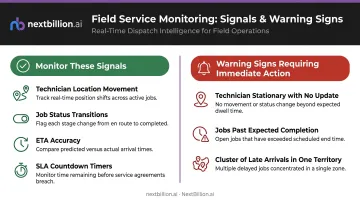
Active monitoring means watching for specific signals, not just checking that jobs are moving:
- Technician location movement on the map — is travel actually happening?
- Job status transitions: en route → on-site → completed at expected intervals
- ETA accuracy against scheduled arrival windows
- SLA countdown timers on open jobs
Operational warning signs that require immediate action:
- A technician stationary for an extended period with no status update
- Jobs still marked "in progress" past expected completion time
- A cluster of late arrivals concentrated in one territory
Salesforce's 2025 State of Service report identifies scheduling conflicts and travel time as top productivity barriers for field service. Both show up clearly in a well-monitored workspace and both require active dispatcher intervention, not passive observation.
Handling Reassignments and Closures
Mid-day reassignment workflow:
When urgent insertions, technician breakdowns, or unexpected delays hit:
- Filter for available technicians with matching skills in the affected territory
- Use the map view to identify the nearest qualified candidate
- Reassign without breaking existing commitments — check their current schedule before confirming
- Push the updated route to the technician's mobile app
Job closure discipline matters. Marking a job complete should trigger downstream actions: customer notification, invoice generation, inventory replenishment requests, and performance data capture.
Incomplete or delayed closures create reporting gaps and inaccurate utilization metrics — corrupting the data dispatchers rely on the following day.
Key Features Every Dispatcher Workspace Should Have
Not all dispatcher workspaces are built equally. These are the features that determine whether a workspace enables proactive dispatch or just documents what already happened.
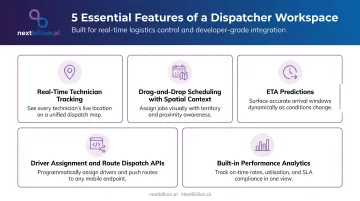
Real-time technician tracking — Assignment decisions made on stale location data are guesses. A live map showing technician positions, current job status, and travel direction gives dispatchers the context to act, not react. NextBillion.ai's Live Tracking API delivers up to 1-meter location accuracy with offline tracking for low-connectivity areas, so visibility holds even when technicians work in remote locations.
Drag-and-drop scheduling with spatial context — Filtering by skill, territory, availability window, and distance needs to happen simultaneously — not in sequence across separate screens. List-based assignment without a map view is how proximity-blind misassignments happen.
ETA predictions surfaced in the workspace — Accurate arrival window estimates let dispatchers catch delays before they breach SLAs rather than explaining them after. NextBillion.ai's routing delivers 95% accurate arrival time predictions using real-time traffic and historical pattern data.
Driver Assignment and Route Dispatch APIs — For FSM platforms with custom workflows, these APIs automate the technician-to-job match (based on skills, location, shift timing, and capacity) and push optimized routes directly to driver apps the moment a job is assigned.
Built-in performance analytics — Dispatchers need first-time fix rate, SLA compliance, average response time, and technician utilization visible in the same workspace. Without them, a dispatcher can optimize for speed all day without knowing whether it's improving outcomes or burning out their most reliable technicians.
Best Practices for Dispatcher Workspace Efficiency
These are operational habits, not software configurations. The platform creates the conditions; dispatchers determine the outcomes.
Keep technician profiles current. Skills, certifications, covered territories, and working hours need regular review. Stale profiles are the leading cause of auto-assignment errors. A 2022 field service study identified technician skill level as a key indicator of first-time completion — which only matters if those skills are accurately recorded.
Build a structured pre-shift review. Before the day starts:
- Clear the qualification queue of unassigned or pending work orders
- Check technician capacity against incoming job volume
- Flag high-risk SLA jobs that need priority handling
- Identify scheduling conflicts before they become mid-day crises
Filter by urgency, not arrival order. Surface the highest-urgency, most time-sensitive jobs first in every decision cycle. Working through jobs in the order they arrived is the default — it's rarely the right approach. Priority-first dispatch reduces SLA breach exposure on the jobs that matter most.
Use territory-based clustering before optimization runs. NextBillion.ai's Clustering API groups service tasks into proximity-based clusters by territory before route optimization generates final sequences. This pre-clustering step gives dispatchers a clean geographic view of workload distribution — making it easier to spot imbalance before routes are locked.
Treat the workspace as a live coordination tool all shift. Not just a morning assignment board. Monitor active jobs, act on delay alerts, and pre-position available technicians near anticipated next-job locations during downtime. Proactive positioning consistently reduces response time on same-day insertions.
That kind of operational flexibility is exactly what Hawx Smart Pest Control needed. One of the largest pest control operators in the US — with technicians across 16 states — Hawx integrated NextBillion.ai's route optimization to update job schedules and routes multiple times per day rather than once. Dispatchers could absorb on-the-go bookings and late cancellations without operational disruption.
Conclusion
The dispatcher workspace doesn't generate value by existing — it generates value through consistent, disciplined use. Clean technician profiles, structured pre-shift reviews, active monitoring throughout the shift, and proper job closure protocols matter more than any individual feature.
Most efficiency gains come not from adding new tools but from using the existing workspace correctly and completely. Review your current dispatcher workflow against the sequence in this guide. The gaps between what the workspace can do and how it's actually being used are where SLA breaches, misassignments, and technician inefficiency take hold. Close those gaps systematically, and the performance improvements follow.
Frequently Asked Questions
What is a dispatcher workspace?
A dispatcher workspace is a centralized, real-time operations interface within an FSM platform that lets dispatchers view and manage work orders, technician locations, availability, and job progress from a single dashboard. It differs from a scheduling calendar by showing live operational status, not just planned appointments. Most workspaces layer in live map views, ETA tracking, and reassignment tools so dispatchers can react to delays, traffic, or cancellations without switching between systems during a shift.
What is a field service dispatcher job description?
A dispatcher receives and qualifies incoming service requests, assigns jobs to technicians based on skill and location, monitors job progress throughout the shift, handles urgent reassignments when disruptions occur, and ensures SLA compliance across all active work orders.
What are the three key elements of field service management?
The three core pillars are scheduling and dispatching, mobile workforce enablement, and performance management. Together, they cover getting the right technician to the right job, keeping field workers informed in real time, and tracking KPIs to improve service delivery.
What is the difference between CRM and field service management?
CRM manages customer relationships, communications, and sales data. FSM manages the operational execution of on-site services — scheduling, dispatching, technician routing, and job completion. The two systems are often integrated, but they solve fundamentally different problems. A CRM tells you who the customer is and what they bought; an FSM platform tells a dispatcher which technician is closest, what parts they're carrying, and whether the job will finish within the promised window.
What metrics should dispatchers monitor in a dispatcher workspace?
Key dispatcher-level metrics include: first-time fix rate, SLA compliance rate, average technician response time, job completion rate per shift, and technician utilization percentage. These should be visible within the workspace itself, not in a separate reporting tool.
How does route optimization improve dispatcher workspace efficiency?
Route optimization sequences multi-stop schedules to minimize drive time and re-optimizes automatically when jobs are added or cancelled mid-shift. Dispatchers spend less time on manual routing and fit more calls into each day — Xpress Global Systems saw a 13% reduction in miles driven per month after implementation.
How does a dispatcher workspace handle mid-shift disruptions like cancellations or breakdowns?
When a job is canceled or a technician's vehicle breaks down, the workspace should surface the disruption immediately, show which nearby technicians have open capacity, and let the dispatcher reassign the job with an updated route in a few clicks. Without this, dispatchers fall back to phone calls and manual rescheduling, which delays every downstream appointment for the rest of the shift.